Stagecraft is a Jira app that can also work with Confluence on the same Atlassian site. Confluence is optional: Stagecraft runs without it.
This page explains exactly what Stagecraft does in Confluence, what it needs, and how to set it up step by step. Steps 1 to 6 need no AI and no key: anyone can try them on a site with Jira and Confluence.
What Stagecraft does in Confluence
- A checklist item asks for a linked Confluence page (no AI, no key). A stage can require a Confluence page on the card, for example "Spec page in Confluence" before a story leaves To do. People link the page the usual Atlassian way: they paste the work item's link in the Confluence page (Confluence then adds the page to the card by itself, as "mentioned in"), or they paste the page link in Jira's Add web link. Stagecraft reads the card's links, checks with Confluence that the page exists, and checks the item. Jira's workflow validator blocks the move while the item is missing. Stagecraft writes nothing in Confluence for this. Steps 1 to 6.
- Optional, with your own AI service: a stage writes a page for each card. A Confluence page action drafts a page with an LLM agent on an AI service your organization brings; a person reviews it and publishes it to Confluence. See Optional: pages written by an agent below.
- Optional, with your own AI service: agents read pages in the Confluence spaces you open to them, for example a definition of done.
How Stagecraft connects to Confluence
- Same site, inside Atlassian. Stagecraft is a Forge app. It calls Confluence with Forge's own product API (
requestConfluence) on the site where it is installed. Nothing goes through the internet to another host, so Confluence does not depend on the switch Call services outside Atlassian. - Confluence is optional. The app declares Jira as required and Confluence as optional. On a site without Confluence, the Confluence tab says "Not on this site".
- People keep their own permissions. The card shows page titles read with the viewer's own Confluence permissions. A page written by a stage is published as the person who approves it.
- Permissions the app asks for in Confluence:
| Scope | What it is used for |
|---|---|
read:space:confluence |
List the spaces for the space pickers, check that a space exists, and find the space of a page linked to a card |
read:page:confluence |
Check that a page linked to a card exists (checklist item), read a stage's page before updating it, and let agents read pages |
write:page:confluence |
Create and update a stage's page (optional feature 2) |
search:confluence |
Find a stage's page by its labels, and let agents search pages |
read:label:confluence, write:label:confluence |
Add and read the cairn labels on a stage's page |
The checklist item uses only the read scopes. The app never deletes Confluence pages.
Before you start
- Jira Cloud and Confluence Cloud on the same site (any plan, including Free).
- Stagecraft for Jira installed and connected to Confluence (step 1).
- A Jira admin, or a person who may edit flows in Stagecraft, to add the checklist item.
- Nothing else: no switch on the Confluence tab, no AI agent and no key.
Step 1. Connect Stagecraft to Confluence
When Stagecraft is installed from the Marketplace, it is installed in Jira. A site admin connects it to Confluence once:
- Go to admin.atlassian.com and open your organization.
- Open Apps > Sites, choose your site, then Connected apps.
- Find Stagecraft for Jira and click View app details.
- Open the Connections tab. Jira shows Connected (required) and Confluence shows Not connected.
- Next to Confluence, click Connect. The panel Connect to Confluence lists the permissions under Actions in Confluence: search Confluence, view page content, create and update pages, view space details, view and add labels.
- Click Connect at the bottom of the panel.
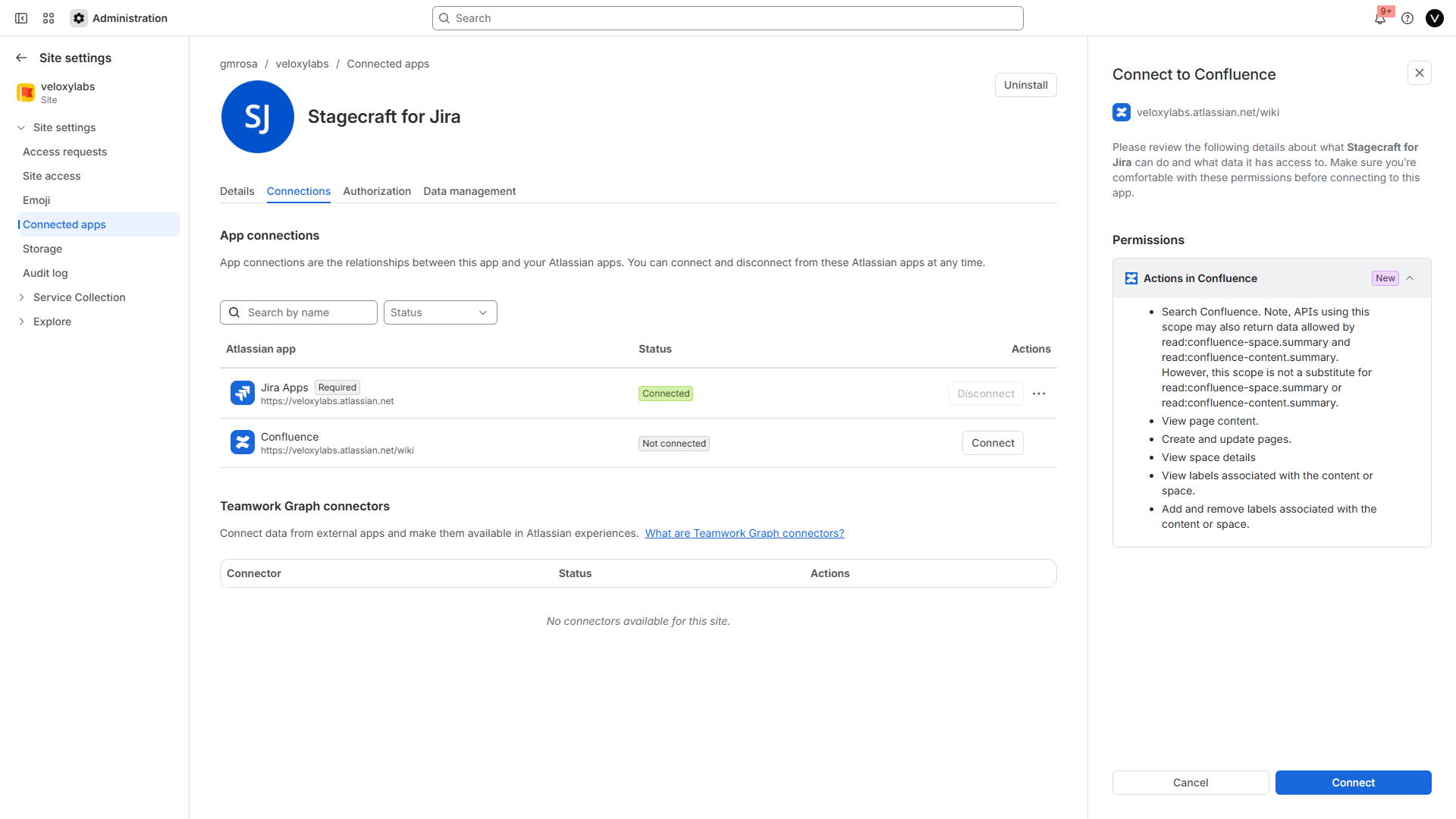
The Connections tab of Stagecraft for Jira in Atlassian Administration, with the permissions the app asks for in Confluence.
Atlassian confirms "App connected: Stagecraft for Jira is now connected to Confluence", and the status next to Confluence reads Connected.
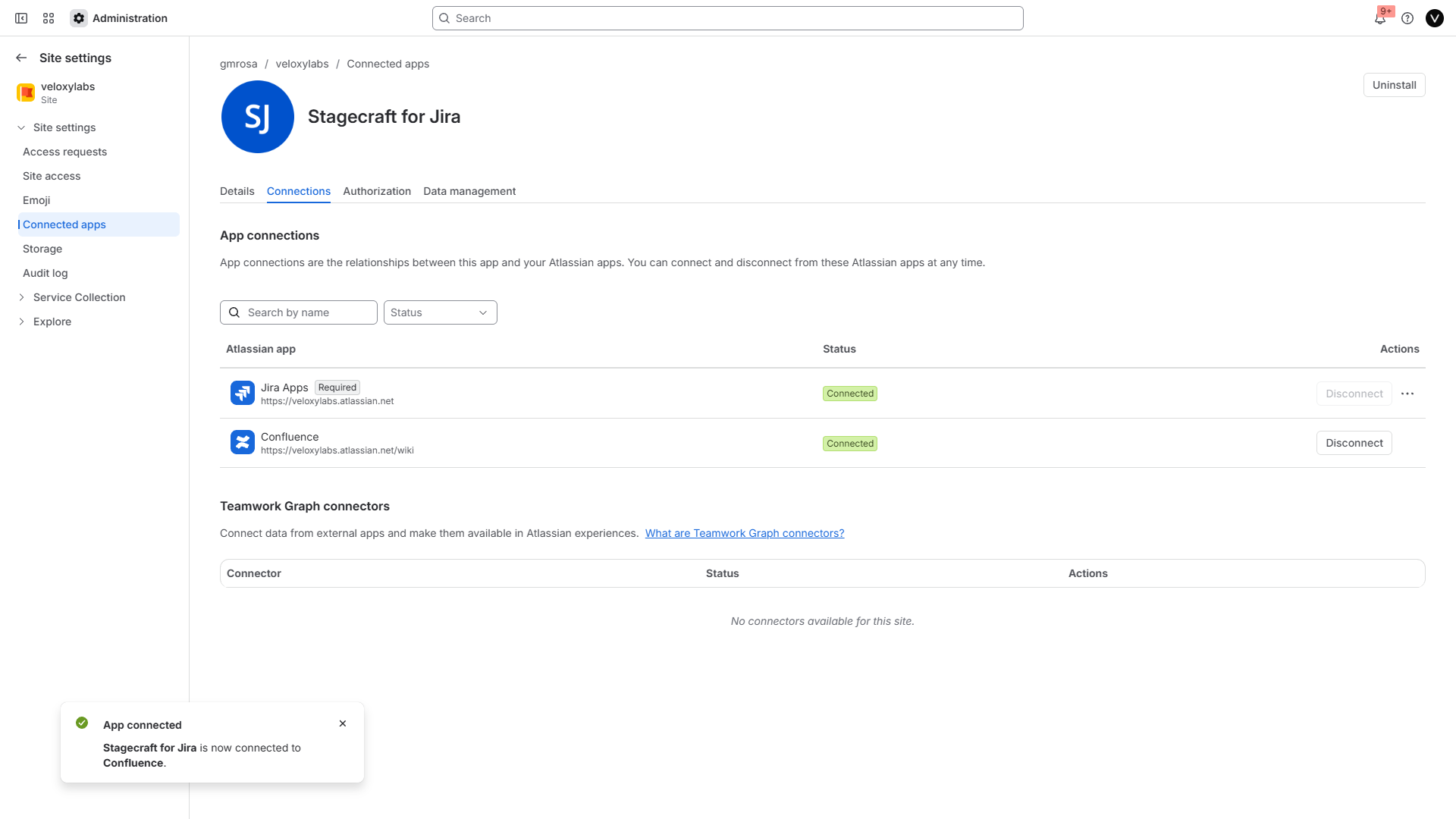
If Stagecraft was installed on a site that already had Confluence, the Marketplace install may have connected both already: check this tab anyway.
Step 2. Check the connection in Stagecraft
- In Jira, open Apps > Stagecraft.
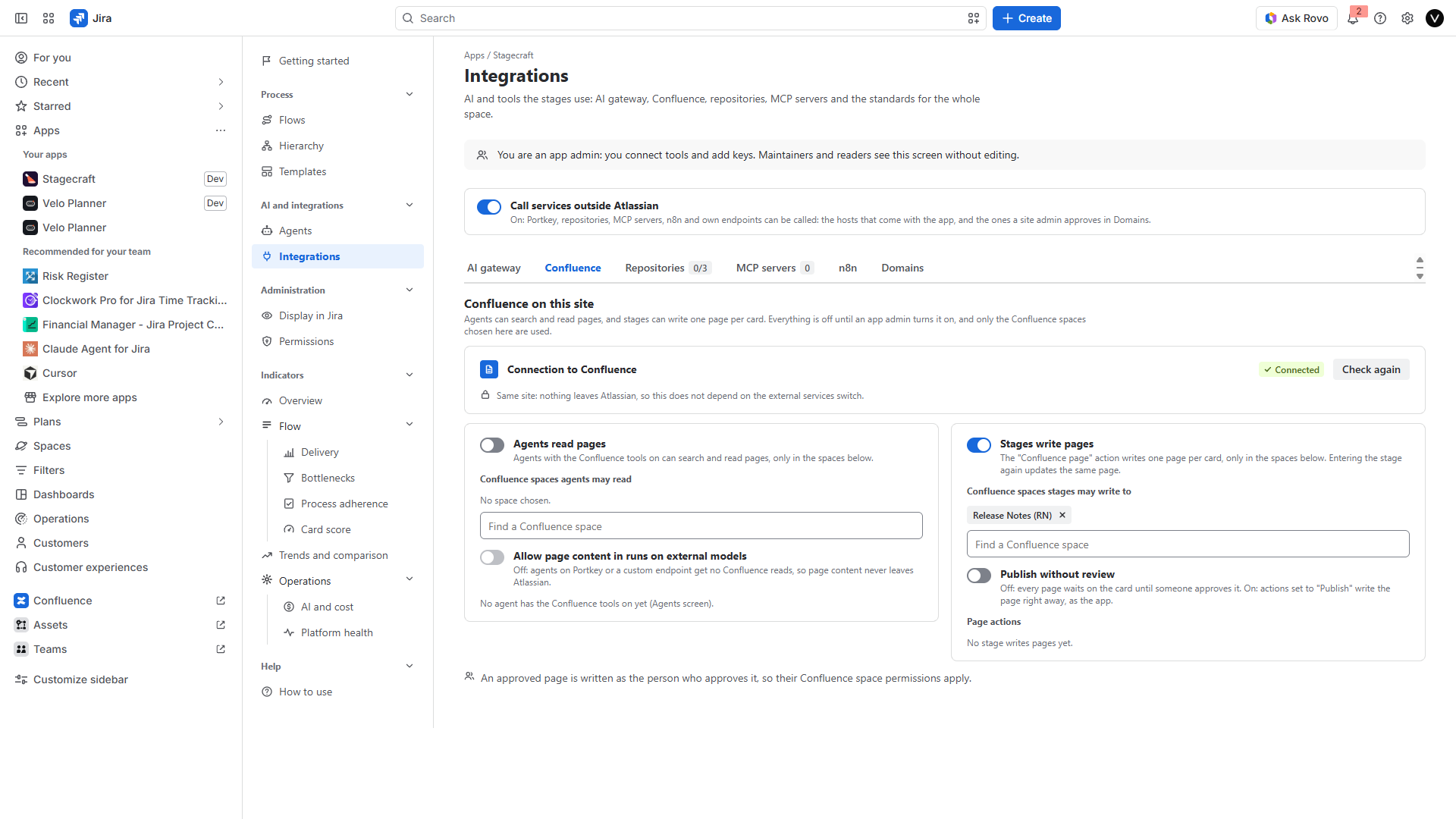
- In the app menu, open AI and integrations > Integrations, then the Confluence tab.
- The card Connection to Confluence shows one of three states:
- Connected: you can go on.
- Not on this site: the site has no Confluence. Add Confluence to the site first.
- No access: Confluence is on the site, but Stagecraft is not connected to it yet. Do step 1, then click Check again.
Step 3. Require a linked page in a stage
- Open Process > Flows and open the flow of the work type, for example Story.
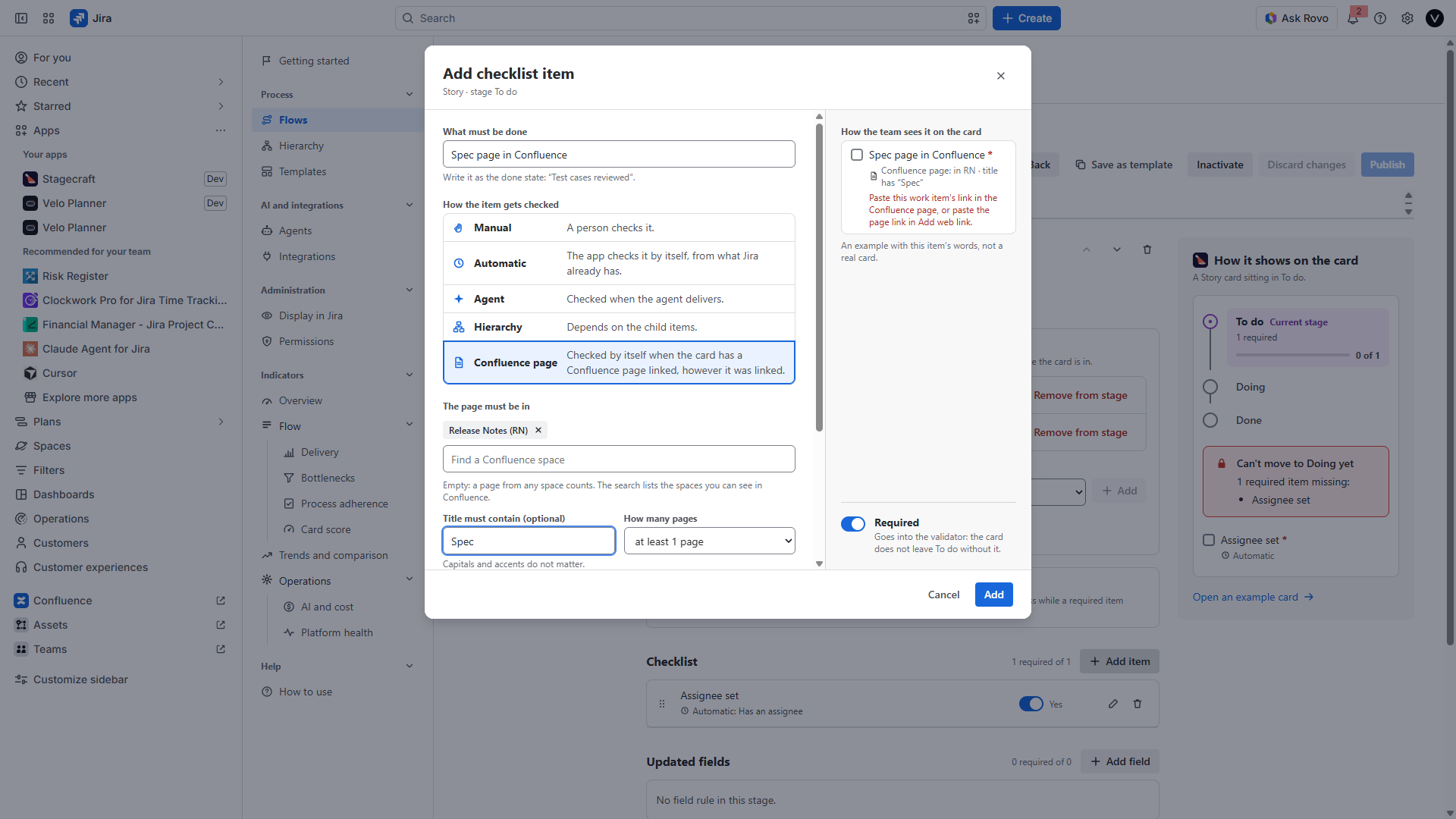
- Choose the stage, for example To do, and in Checklist click Add item.
- Under What must be done, write what people see on the card, for example "Spec page in Confluence".
- Under How the item gets checked, choose Confluence page ("Checked by itself when the card has a Confluence page linked, however it was linked.").
- Optional:
- The page must be in: use Find a Confluence space to add one or more spaces. Empty: a page from any space counts.
- Title must contain (optional): a word the page title must have, for example "Spec". Capitals and accents do not matter.
- How many pages: at least 1 (the default) up to 10.
- Leave Required on if the card must not leave the stage without the page, click Add, then Publish the flow. Publishing adds Stagecraft's validator to the workflow transitions out of the stage.
Step 4. The card asks for the page
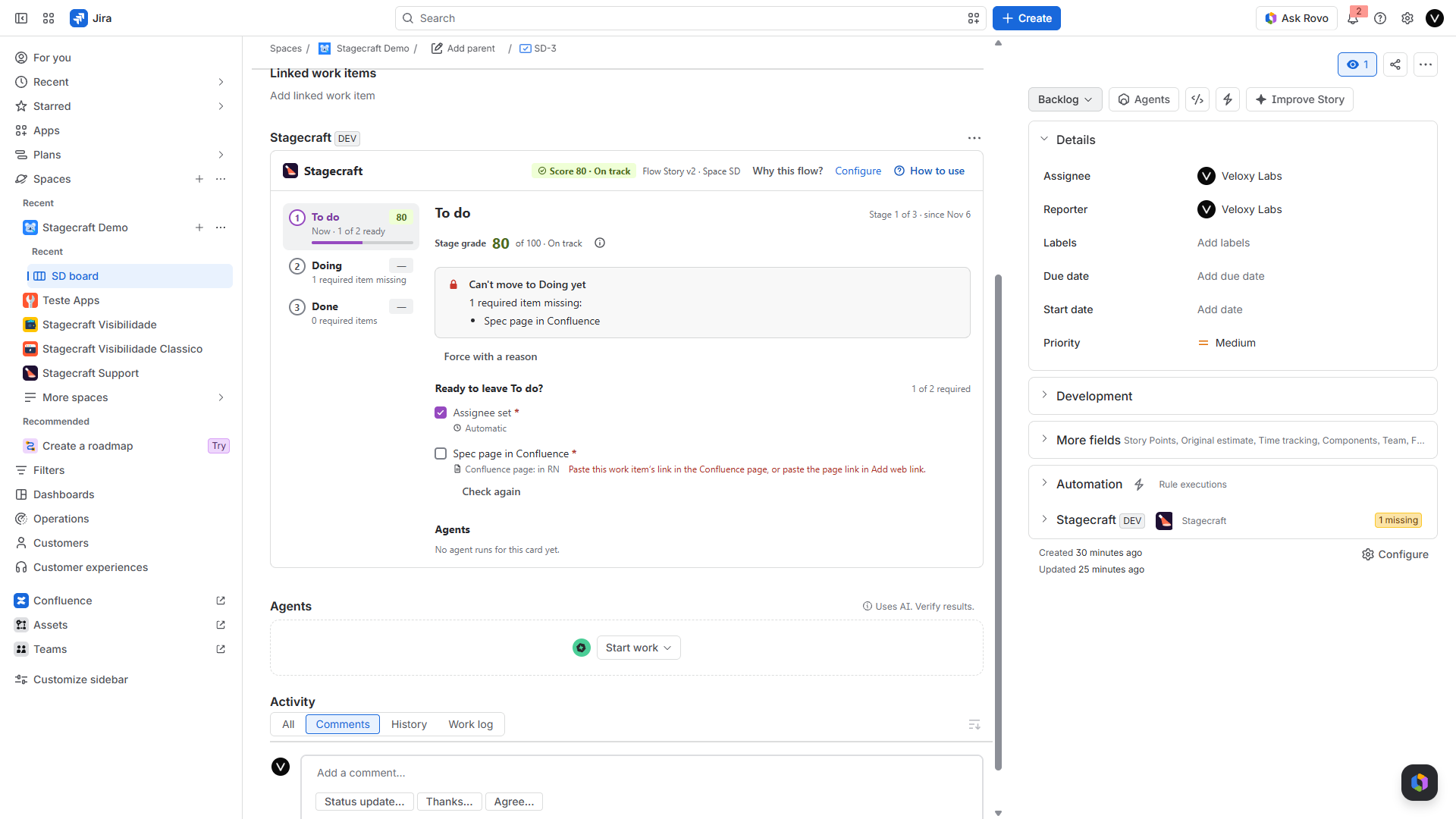
On a card in that stage, open the Stagecraft panel (the apps icon under the card title, then Stagecraft). The item shows as missing, with how to link the page: "Paste this work item's link in the Confluence page, or paste the page link in Add web link."
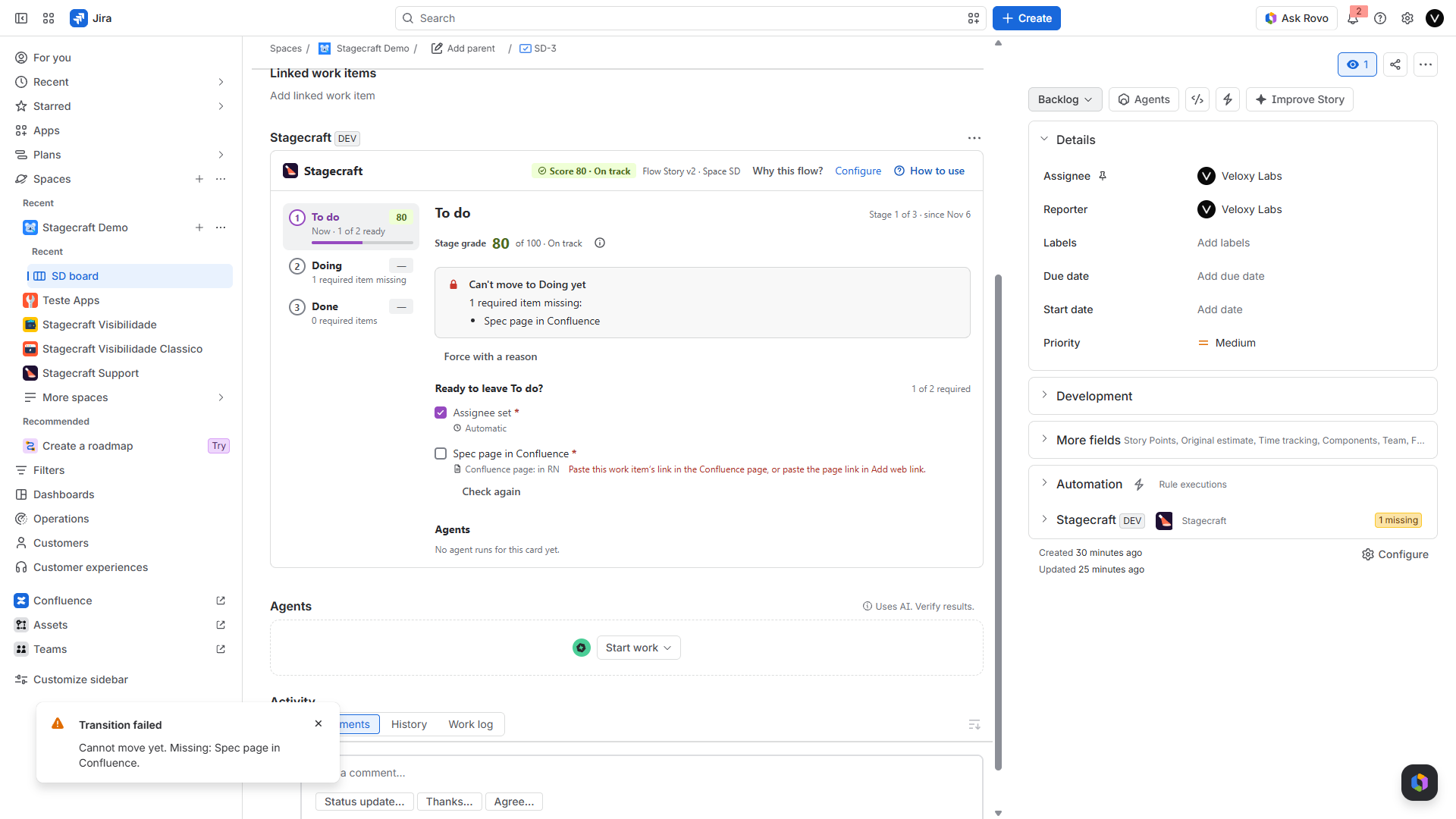
Moving the card on is blocked by Jira while the item is missing: "Cannot move yet. Missing: Spec page in Confluence."
Step 5. Link the page, the Atlassian way
Either of these links counts:
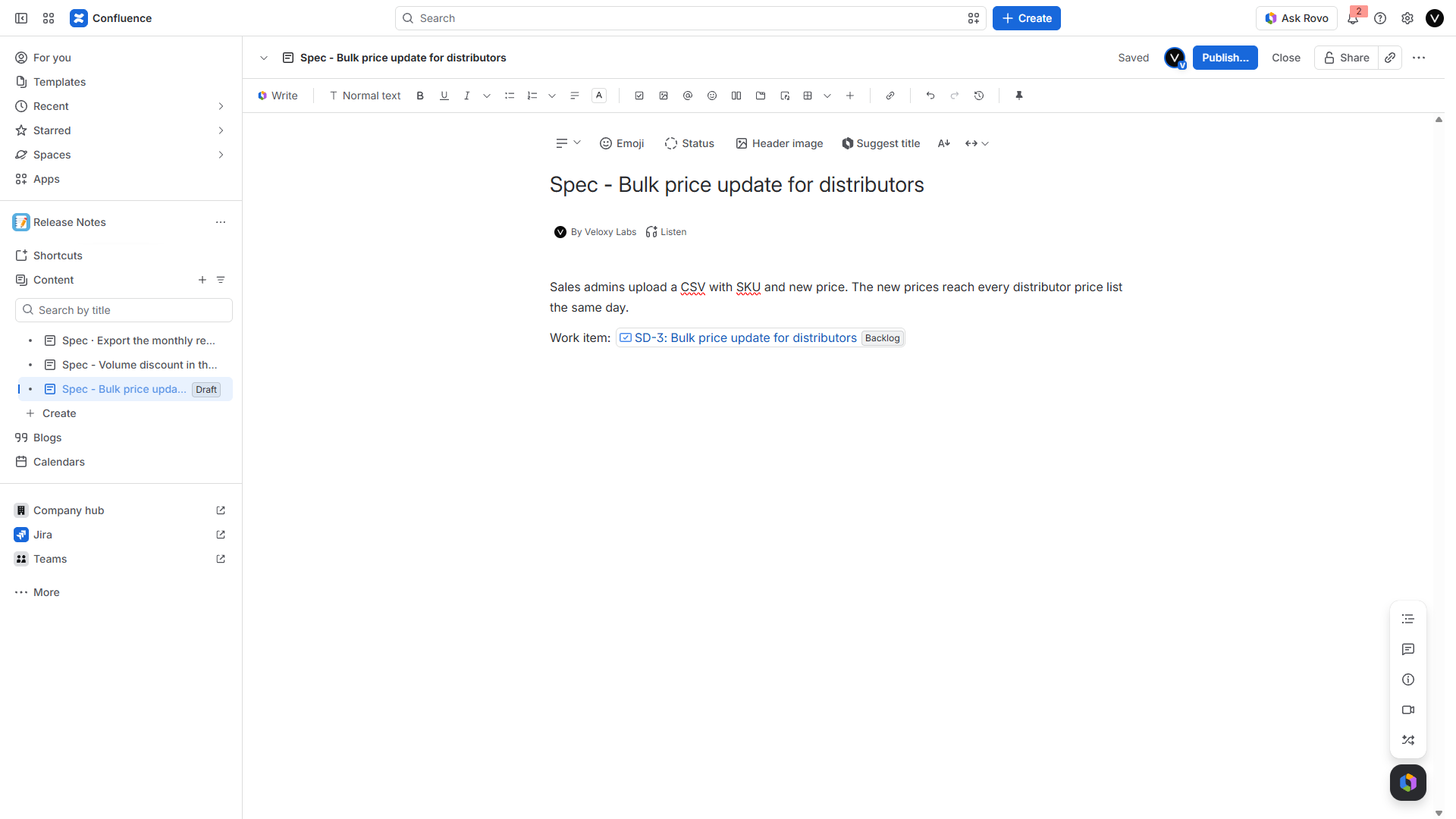
- In Confluence: copy the work item's link (for example
https://your-site.atlassian.net/browse/SD-3), paste it in the page, where Confluence turns it into a smart link, and publish the page. Confluence adds the page to the card's links as "mentioned in". The Jira issue macro works too. A Jira work items list made from a search (from the/menu) does not link the page to the card, so paste the work item's own link. - In Jira: on the card, choose Link work item > Web link (or the link icon), paste the page address (for example
https://your-site.atlassian.net/wiki/spaces/RN/pages/123456/Spec) and save. Confluence's short/wiki/x/...links count too.
Step 6. The item checks itself
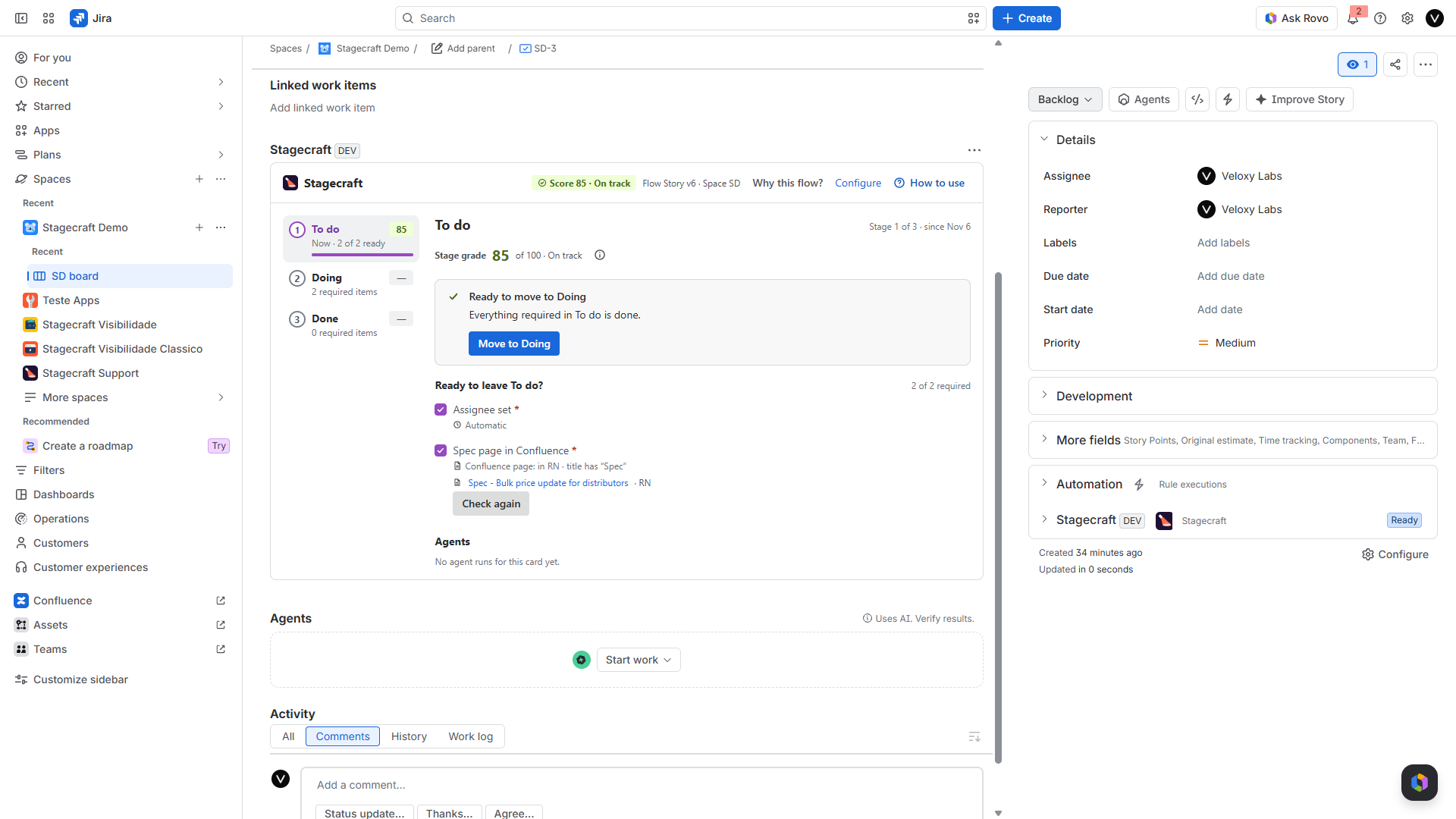
Linking a page is not a change Jira reports to apps, so the item updates when someone opens the card, with Check again on the item, and every hour for cards still waiting on a page.
Once checked, the panel lists the page that counts, with its title and space key, read with the viewer's own Confluence permissions; a page the viewer cannot open shows as "A Confluence page you cannot open". The card can now move on.
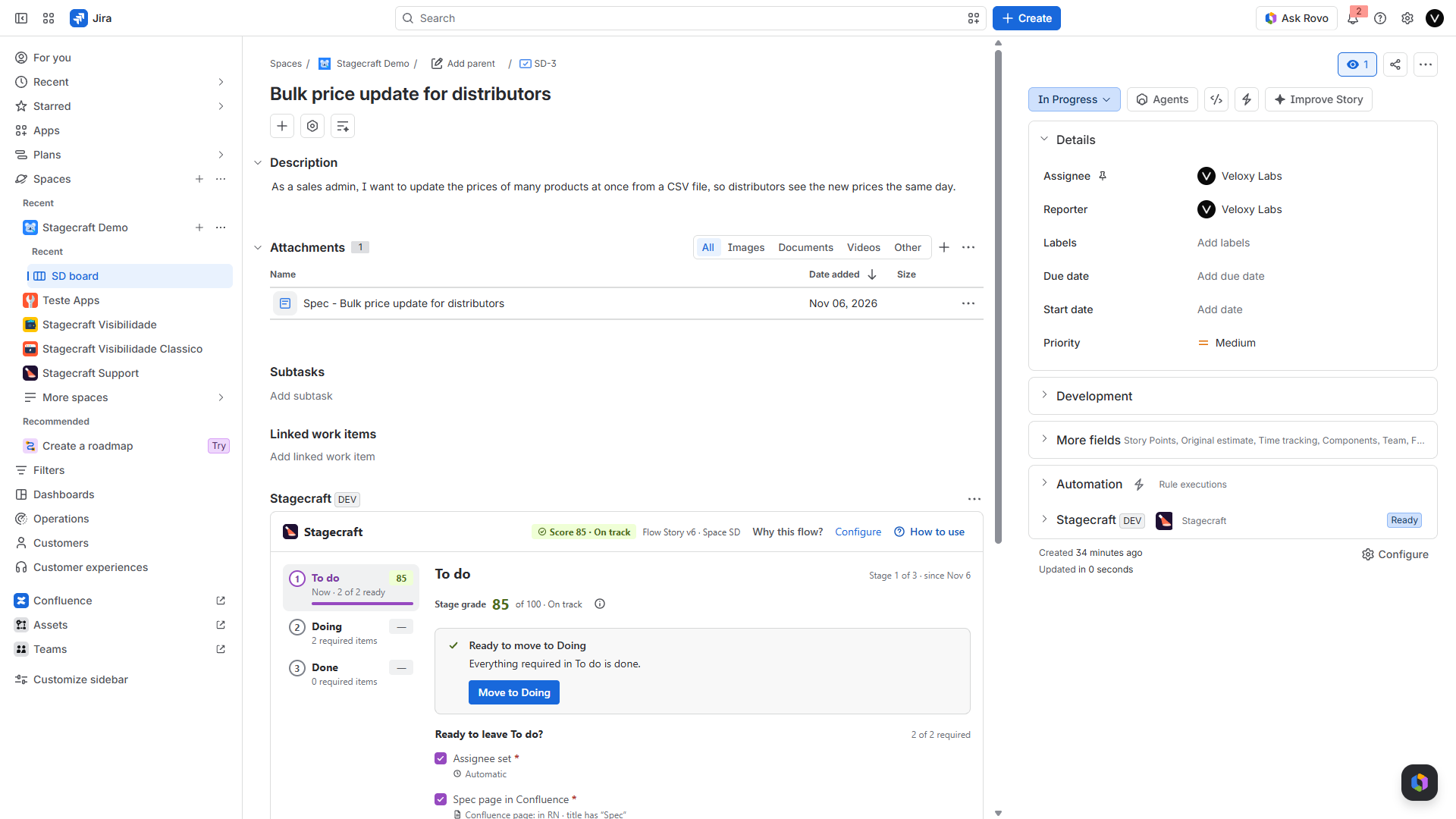
Removing the link, or moving the page to the trash, makes the item missing again.
What counts:
- only pages of this site's Confluence (a link to another site's Confluence never counts);
- only current pages (not deleted, archived or drafts) that Stagecraft can see;
- pages in the chosen spaces and with the chosen text in the title, when the item asks for them;
- page addresses of the form
/wiki/spaces/<KEY>/pages/<id>,/wiki/pages/viewpage.action?pageId=<id>and the short/wiki/x/...links Confluence's Share button gives.
Optional: pages written by an agent
This part needs an AI service your organization brings (a Portkey config or your own endpoint compatible with the OpenAI chat API), the switch Integrations > Call services outside Atlassian on, and your organization's key. It is off by default and not needed for steps 1 to 6.
- Choose the spaces. On the Confluence tab (Jira admins only), turn on Stages write pages and add spaces under Confluence spaces stages may write to. Leave Publish without review off to have a person approve every page.
- Prepare the writer. In AI and integrations > Agents, set an agent's Kind of agent to LLM on your AI service, with instructions such as "You write release notes for one Jira work item. Use only what is on the card." Rovo agents cannot write pages, because Rovo does not let an app hand its tools to a Rovo agent.
- Add the action. In the flow editor, choose a stage (for example Done), click Add action, and under AI and integrations choose Confluence page: space, page title (default
{key} · {summary}), optional parent page id, what the page must cover, the writer, and Review first (recommended) or Publish. Save and publish the flow. - Review and publish. When a card enters the stage, the agent drafts the page. On the card, Review page opens the draft; Publish to Confluence writes it in the space as the person who approves it, with the Jira issue macro at the top.
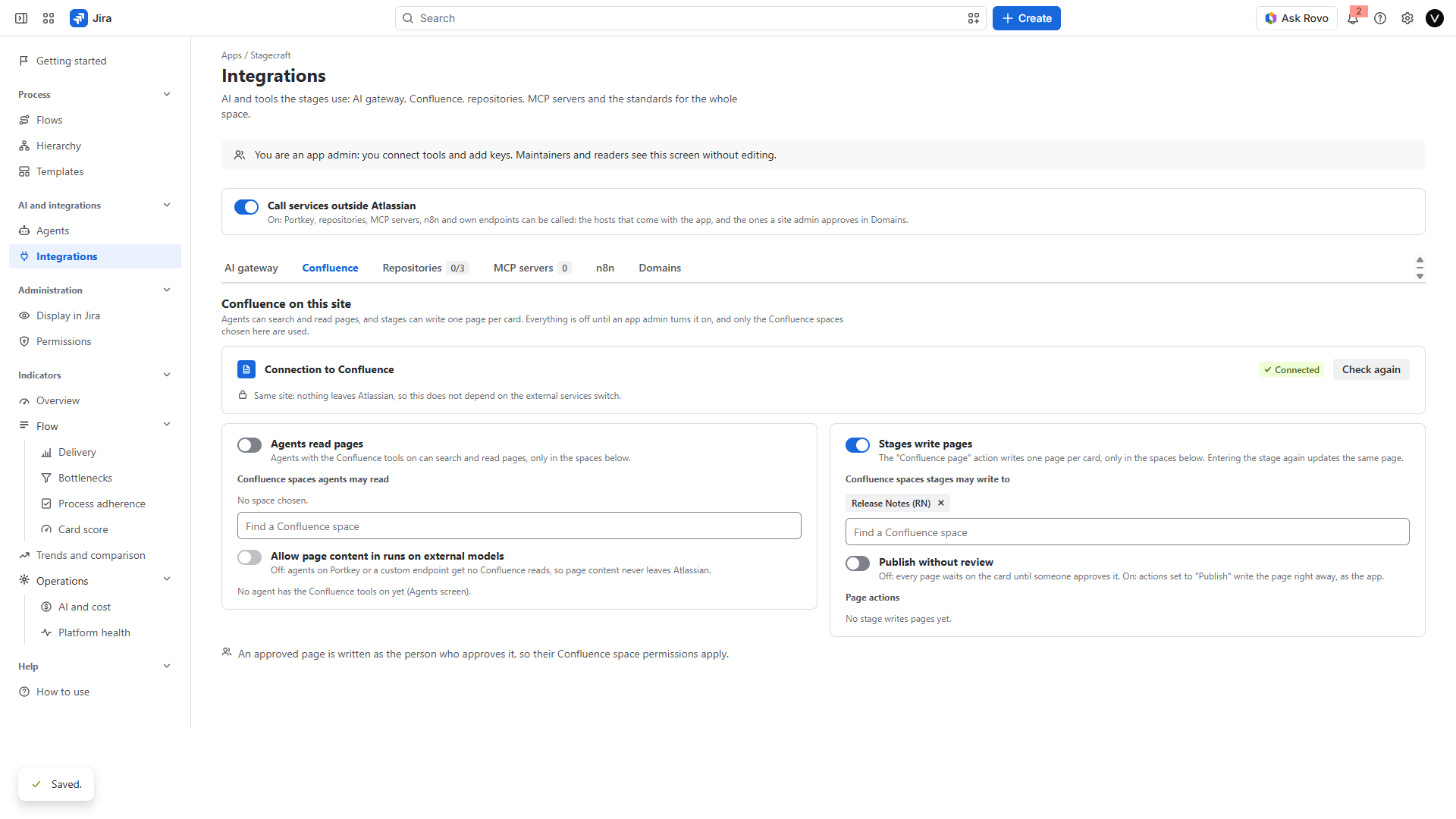
What a stage's page action writes, and where:
| Where | What | Why |
|---|---|---|
| Confluence page | Title from the action's template, the Jira issue macro at the top, then the approved draft | The page itself |
| Page labels | cairn and cairn-<issue key> (for example cairn-abc-123) |
To find the card's page again |
| Page content property | cairn, with the issue key, the flow and the action |
To link the page to exactly one card and action |
| Jira card | A comment with the link to the page | So people on the card can open the page |
| Jira card property | cairn.docs: page id, version, address and title |
To update the same page next time |
One card and one action always map to one page: when the card enters the stage again, the next approved draft becomes a new version of the same page. When Stagecraft is uninstalled, the pages it wrote stay in Confluence, as ordinary pages.
Agents that read pages. With Agents read pages on, spaces under Confluence spaces agents may read, and Allow page content in runs on external models on, an LLM agent can use search_pages (up to 8 results, only in the read spaces) and read_page (cut at about 8,000 characters). Page content reaches the model as data, inside <page> tags, never as instructions.
Turn it off
- Remove the Confluence page item from the stage, or turn Required off, and publish the flow.
- Stages write pages off: page actions stop writing and leave a comment on the card.
- Agents read pages off: agents get no Confluence tools.
- To disconnect the app from Confluence completely, a site admin opens Connected apps > Stagecraft for Jira > Connections in Atlassian Administration.
Troubleshooting
| What you see | Why | What to do |
|---|---|---|
| Connection says No access | Stagecraft is not connected to Confluence on this site | Step 1: Connected apps > Stagecraft for Jira > Connections > Connect, then Check again |
| Connection says Not on this site | The site has no Confluence | Add Confluence to the site |
| A Confluence page item stays open although the page has the work item | The work item is in a Jira work items list made from a search, or the page is still a draft | Paste the work item's own link in the page and publish it; then Check again |
| A Confluence page item stays open although the page is linked | The page is in another space, its title lacks the text, it belongs to another site, it was deleted, or Stagecraft cannot see it (page restrictions) | Click Check again on the item; check the item's options in the flow editor |
| "Stagecraft could not read Confluence just now." on the item | Confluence did not answer | The item keeps what it had in this stage. Click Check again later |
| "Stagecraft has no access to Confluence on this site, so it cannot see the page." on the item | Stagecraft is not connected to Confluence | Step 1; the item waits until then |
| "No LLM agent on an external service writes this page" on the card | The page action has no writer, or the writer is a Rovo agent | Pick an LLM agent in the action |
| "Page writes are off for this site." | A Jira admin turned writes off | Turn Stages write pages on again |
| "You cannot write in that Confluence space." | The reviewer has no permission to add pages there | Someone with access publishes the draft |
Need help? See the Support page.